
QR codes for inventory: when to use them and how
QR codes hold more data than a traditional barcode, scan from any angle, and read with a plain smartphone camera — no dedicated hardware. This guide covers when QR codes beat 1D barcodes for inventory, what to encode, the main use cases, and how to implement them without wasting a batch of labels.
Can you use QR codes for inventory?
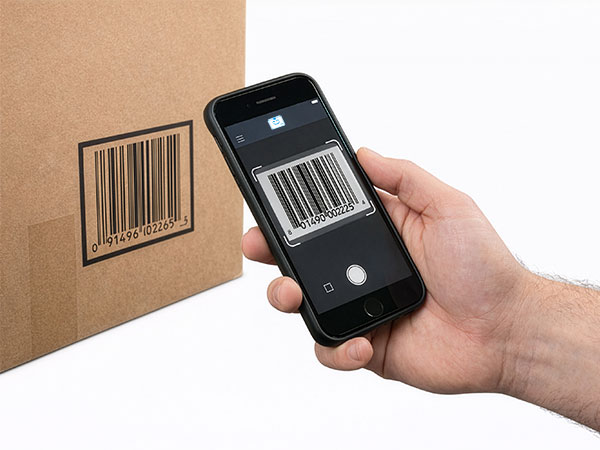
Yes. QR codes work well for inventory management, and they shine wherever you need more than a bare ID number or want people to scan with the phone already in their pocket. A QR code (a 2D matrix) holds up to roughly 4,000 characters, versus the 10–25 a 1D barcode encodes, so it can carry a URL, a set of fields, or a plain SKU. Any modern smartphone camera reads one directly, which means no scanner to buy for occasional or field use.
The trade-off is speed and size. A dedicated laser scanner still reads a 1D barcode faster in a high-volume checkout or picking line, and a QR code needs a larger minimum label (about one inch) to scan reliably. For most small-business inventory — assets, tools, shelves, bins, and consumables — those trade-offs favor QR codes, because the phone-camera convenience and the richer payload matter more than shaving milliseconds off a scan.
QR codes vs barcodes for inventory
The two are not rivals so much as tools for different jobs. On data capacity, a QR code holds up to about 4,000 characters against a 1D barcode’s 10–25 — enough to encode a URL or structured data rather than just an ID. On scan angle, a QR code reads from any direction, while a 1D barcode needs roughly horizontal alignment. On hardware, a QR code scans with any phone camera, whereas a 1D barcode is fastest with a dedicated laser scanner and often needs an app to read on a phone.
On label size, a 1D barcode can be printed very small; a QR code needs about a one-inch minimum for reliable phone scanning. The practical rule: use QR codes when you need richer data, phone-based scanning, or a customer- or field-facing label; use traditional barcodes for high-speed checkout and warehouse picking where dedicated scanners are already in hand. Plenty of operations run both — 1D on fast-moving retail stock, QR on assets and locations.
What to encode in an inventory QR code
Keep it as small as the job allows — more data means a denser, larger code. There are three sensible choices. Simple: encode just the SKU or asset ID, so the QR code behaves exactly like a barcode and your software looks the item up by ID. This makes the smallest, most compatible code.
Recommended for most teams: encode a URL that opens the item in your inventory software. Anyone with a phone can scan and land on the item’s details ready to update, log activity, or check history — no app install, and you can change what the page shows without reprinting the label. Advanced: encode structured data such as SKU, location, and batch together (for example a short JSON payload) when you need the data to travel with the label offline, at the cost of custom parsing on the way back in.
QR code inventory use cases
Asset tracking is the strongest fit: a QR code on equipment, tools, or IT assets links to maintenance history, warranty, and assignment records, so a scan checks the item out or logs service. Location labels put a QR code on shelves, bins, and zones; scanning shows everything stored there or assigns items during put-away, which speeds warehouse navigation.
Field service technicians scan a code on equipment to pull up a manual, log a repair, or order a part with nothing but a phone. Receiving and put-away can carry a QR code on a shipment or pallet label so one scan receives the whole delivery or reveals its contents. Consumables and supply cabinets get a posted code staff scan to request a restock or log usage. And customer-facing products can wear a QR code that links to manuals, warranty registration, or a reorder page — scannable by any customer, no app required.
How to implement QR codes for inventory
Start by deciding what to encode — for most inventory, a URL to the item page in your software is the flexible default. Generate the codes next, using your inventory software’s built-in generator or, for a one-off, a free online tool; export a list of URLs for batch generation. Then choose a label size and material: at least one inch for reliable phone scanning, and synthetic (UV-resistant) stock for outdoor or harsh environments.
Print a few test labels and scan them with more than one phone before committing to a batch — check readability at the distance you will actually scan from, keep the code high-contrast (black on white), leave a quiet zone of white space around it, and print the item name or ID beneath the code so a damaged label is still usable. Finally, train the team on the workflow: scan to check out, scan to log service, scan to update quantity. A ten-label pilot catches size and contrast problems that a thousand-label run would make expensive.
QR codes for inventory in StockZip
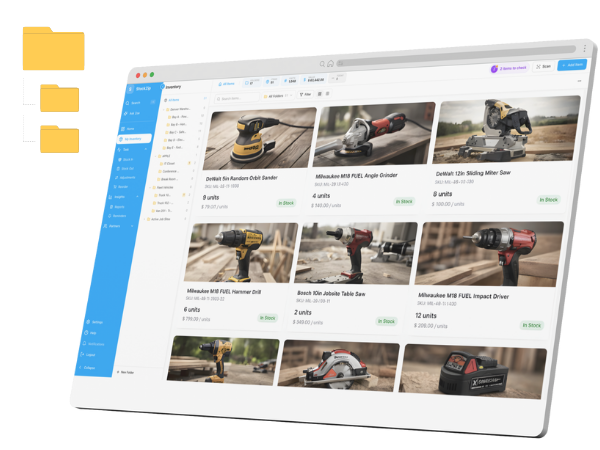
StockZip generates a code for every item and location, and you can scan with a phone camera to open the item, view details, or update quantities — no separate app download. Generating a code for lookup and scanning it are both available on the Free plan, so the core "scan to find and update" loop costs nothing.
The honest boundary is label printing. Printing QR or barcode label sheets in batches — the physical labels you stick on shelves and products — is a paid feature, available from the Starter plan up, not on Free. So on Free you can generate and scan codes to look items up; producing printed label sheets to roll QR codes out across your stock is where a paid plan comes in. Plan the rollout accordingly: pilot the scanning workflow free, then move to Starter when you are ready to print at volume.