

Scanning a barcode with a phone
Scan with your phone

Count, move, and find stock with the camera already in your pocket. Works offline, syncs later.

Try the live demo →
Organized stock on shelves
Switching from Sortly?

Bring folders, photos, and history over in an afternoon — with pricing that stays predictable at renewal.

See pricing →
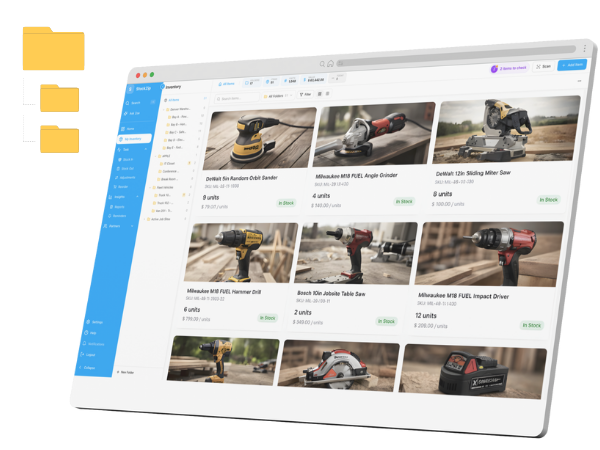
Folder-style inventory list
Free spreadsheet templates

Excel, Google Sheets, and printable count sheets — ready to download, no signup needed.

Get the templates →
Home › Features › Bulk editing

Bulk edit inventory without opening every item one by one

Inventory gets messy during normal work: items land in the wrong folder, a batch needs a tag, old records need clearing out. Select the items that need the same change, then move, tag, or delete them in one controlled action — and for mass price or field updates, push them through the CSV update-existing import.

Start freeSee pricing

Free forever for 100 items · no credit card · works on web and mobile
stockzip.app
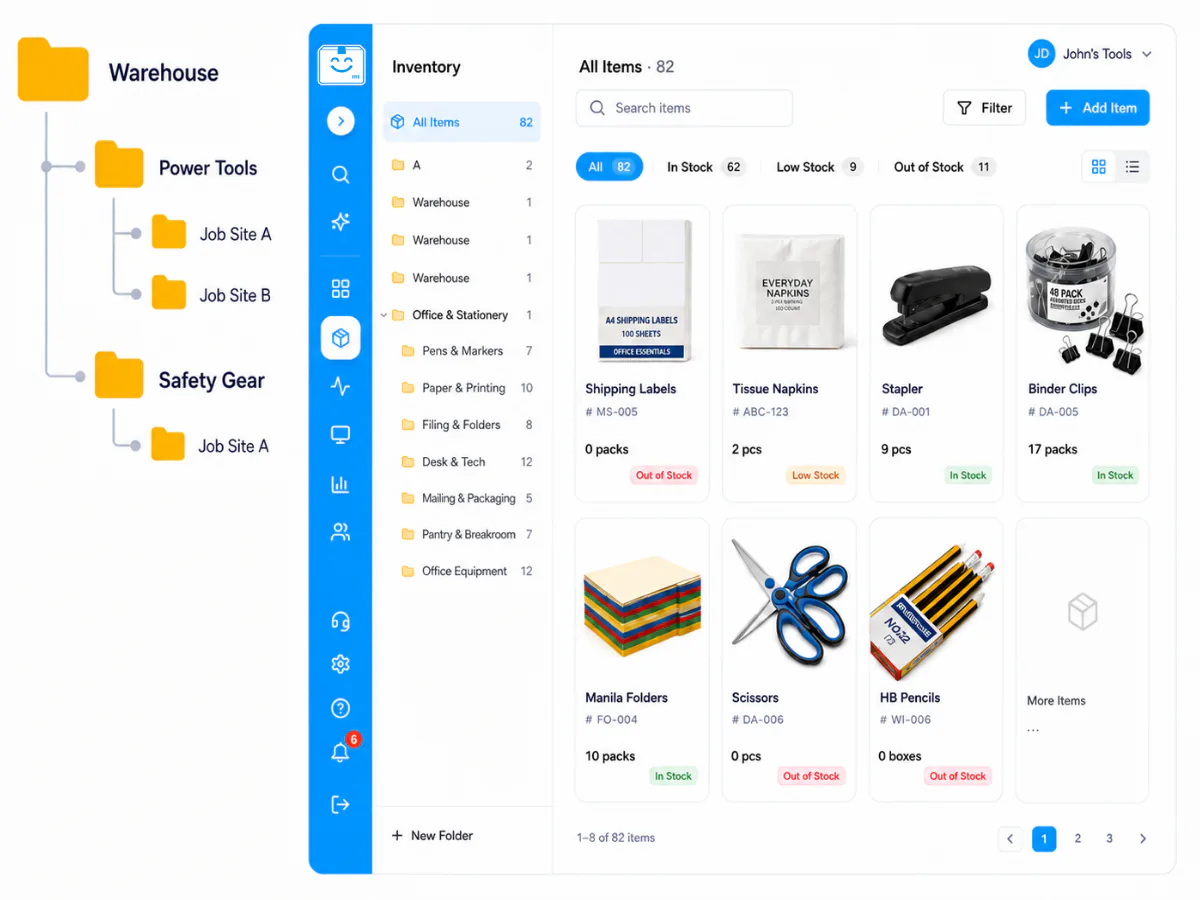
StockZip inventory grid with multiple item cards selected, ready for a bulk move, tag, or delete action

Select the items that need the same change from the list view, then apply one action to the whole set instead of editing each record.

Three steps, no setup project

How it works

01 · Filter the list to what needs changing

Use search, folders, tags, or stock status to narrow the inventory list down to the items that all need the same update — so your selection is focused and easy to review.

02 · Select and choose a bulk action

Tick the records that should change together, then pick a supported bulk action: move the selection into a folder, apply a tag, or delete the selected records.

03 · Apply, review, and undo if needed

Confirm after reviewing the scope. Supported actions show a short undo prompt right after they run — so a bulk change is a controlled operation, not a leap of faith.

Everything you need in one place

Move selected items in one action

Reorganising by location or project? Put the whole selection into the right folder at once, then carry on browsing — no opening each item to change its folder.

Apply a tag to a whole group

Tag every item that belongs to the same job, kit, event, or replenishment group so the team can filter them together afterwards.

Delete records with a safety net

Clear out records that no longer belong in active inventory, with a short undo window on supported deletes so a mistaken selection is recoverable.

Mass price & field updates via import

For a supplier price increase or a seasonal min-stock change across hundreds of items, the CSV update-existing import matches rows by SKU or barcode and updates fields in one pass.

Focused, reviewable selections

Bulk actions are built for controlled cleanup, not unrestricted spreadsheet-scale editing. Keeping selections focused makes every change easy to check before it applies.

Same actions on the phone

Bulk select works on mobile too, so cleanup does not have to wait until you are back at a desk — tidy the list from the warehouse floor.

Frequently asked questions

How do I select items for a bulk action?
Filter the inventory list with search, folders, tags, or stock status, then select the records you want to change together. With a selection active you can choose a supported bulk action — move the items to a folder, apply a tag, or delete the selected records.
What can I change in bulk?
The bulk-select actions focus on common cleanup: moving selected items to a folder, applying a tag, and deleting selected records. For mass field changes — prices after a supplier increase, minimum stock levels, corrected descriptions — use the CSV update-existing import, which matches rows to your items by SKU or barcode and updates them in one pass.
Can I undo a bulk action after it runs?
Supported bulk actions show a short undo window immediately after they run. Treat bulk actions as controlled operational changes: review your selection before applying, and use the undo prompt if the scope was not quite right.
Is there a limit to how many items I can act on at once?
Bulk actions are designed for focused inventory cleanup rather than unrestricted spreadsheet-scale editing. Keep selections narrowed to the items that need the same change so the action stays easy to review before you apply it.
How is bulk editing different from CSV import?
Bulk select is for in-app cleanup on records you can see — move, tag, or delete a selection. The CSV update-existing import is for data-heavy field changes across your whole catalogue, matching rows by SKU or barcode. Many teams use both: import to set values in bulk, then bulk select to organise the results.

Keep exploring

All features →

Set up your inventory in an afternoon

Free for 100 items, no credit card, and your signup price is your renewal price.

Start freeSee pricing
Free for 100 items
No credit card
Start free