
Free label generator for inventory sheets
Lay out inventory labels — item name, SKU, and a Code 128 barcode or QR code — on a printable Avery-style sheet, then print. Up to 60 at a time, in your browser. No signup, no watermark, nothing uploaded.
Try everything free for 14 days · no credit card
No comma? The whole line is used as both the name and the SKU.
Scannable code (encodes the SKU)
Labels are built in your browser — nothing you type is uploaded or stored.
Your label sheet preview will appear here.
What a label sheet generator is for
A label sheet generator turns a list of items into a full page of ready-to-print labels — each one carrying the item name, its SKU, and a scannable barcode or QR code — arranged in a grid that matches a standard label sheet. Instead of designing one sticker at a time, you paste a column of items, pick a layout, and print the whole sheet at once.
This differs from a plain barcode generator, which produces a single code image. Here the code is only part of the label: the human-readable name and SKU sit above it, so a person can read the label and a scanner can read the code. That is what makes it useful for shelving, bins, and asset tags rather than just encoding a value.
Everything runs in your browser — paste up to 60 rows, choose a sheet layout, toggle what appears on each label, and generate. Nothing you type is uploaded or stored.
How to print labels that line up with your sheet
Alignment is where most label prints go wrong. When your browser print dialog opens, set the scale to 100% (or "Actual size") and turn OFF any "Fit to page" or "Shrink to fit" option — those silently resize the grid so it no longer matches the die-cut label positions on your sheet.
Always do a test print on plain paper first, then hold it against a blank label sheet up to the light to check the cells line up before you commit a real sheet of adhesive labels. If the whole grid is shifted, nudge your printer margins; the generator uses standard page margins that suit most laser and inkjet printers, as well as thermal label printers via the same print dialog.
Pick the layout that matches the label stock you own — for example a 3 × 10 grid for 30-up address labels, or a 2 × 4 grid for larger shipping labels. Print the same test twice if you change layout, because different sheets have different margins.
What to put on an inventory label
Keep it to three things: the item name (so a person can read it), the SKU or a short unique ID (so it is unambiguous), and a barcode or QR code that encodes the SKU (so a scanner can pull it up). Encode the SKU, not the item name, price, or description — the label only needs to identify the item; your inventory software holds everything else and stays editable without reprinting.
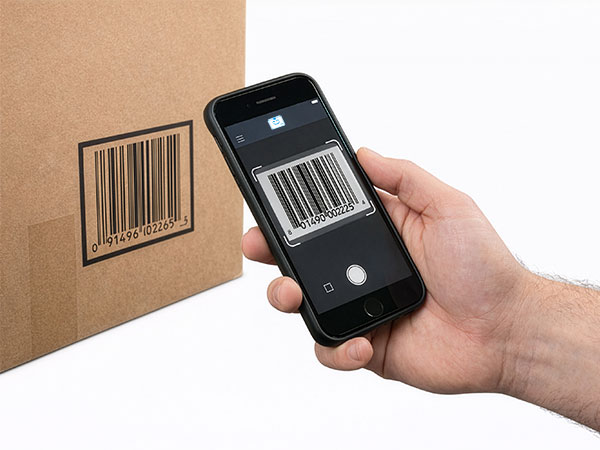
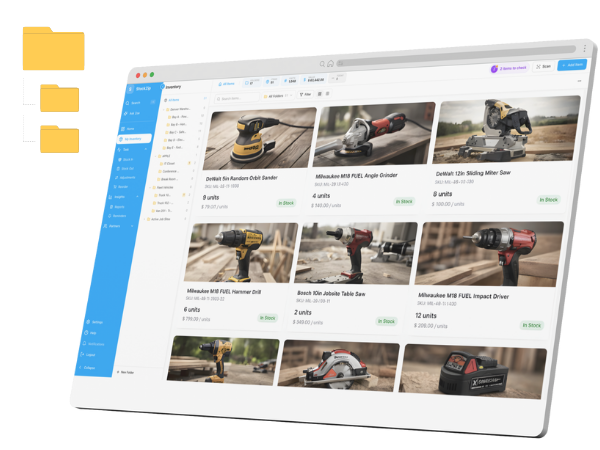
Choose Code 128 for classic barcode labels read by laser scanners, or QR for phone-first scanning and better resilience when a label gets scuffed. If you do not have SKUs yet, an ascending code like STZ-0001 works fine. A label only pays off when scanning it does something — the difference between a printed sticker and a real system is that in a barcode inventory system a scan checks items in and out, fires low-stock alerts, and writes an audit trail.
Frequently asked questions
Related tools
All tools →Automate reorder alerts with StockZip
Set a reorder point per SKU and StockZip alerts you the moment stock drops below it — no spreadsheets, no manual checks. Free for 14 days, no credit card.